Journal
Talk to Klara from anywhere, with faster spoken replies
A KDE global shortcut, faster spoken replies, and a quieter Settings window. In 0.9.3-1, for Kubuntu 24.04 and 26.04.

31 August 2026
Klara is meant to sit beside you while you work, not steal the screen. Until now, talking to her meant bringing her window forward and holding the mic button. That is still there. What is new is a proper KDE global shortcut.
Hold to talk, from anywhere
The default is Meta+Alt+V — the Super key plus Alt plus V. Hold it to talk, release to send. Another app, another desktop, another KDE Activity: it does not matter. Klara stays in the background, listens, and answers by voice.
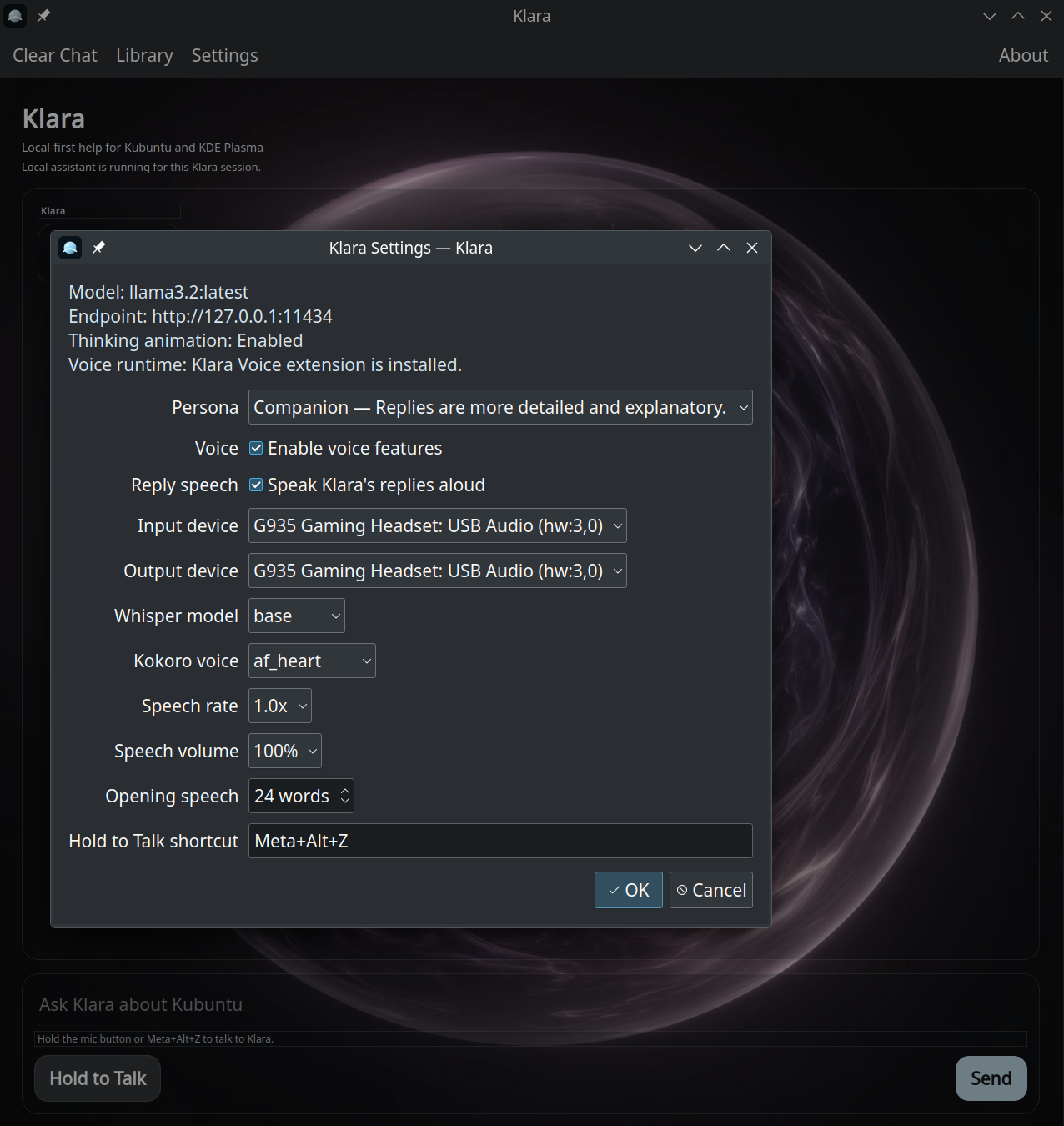
You can change or clear the combo in Settings, or in System Settings under Shortcuts. The mic button in her window still works if you would rather stay in the chat.
Voice in and speech out belong to Klara-Voice and the Voice-Upgrade. Text chat does not need the shortcut.
She starts talking sooner
A long spoken reply used to wait until Kokoro had encoded the whole text. She now encodes an opening clip of about 24 words, starts talking, and encodes the rest while you listen.
If a reply starts with a tiny “Yes.”, she groups the next sentences so you do not get a gap. Opening speech is tunable in Settings if your machine is faster or slower.
Whisper hears Clara. We hear Klara.
Whisper often hears Clara. We rewrite that to Klara before the question reaches the local model, so she no longer “corrects” you.
Settings, quieter
The long notes have moved into the Klara Guide. Ask her what Opening speech or the Hold to Talk shortcut means, and she will open the page. Settings itself is the controls: persona, devices, Whisper, Kokoro, speech rate, opening clip, shortcut.
About now sits on the right of the toolbar, with a short reminder that she can get things wrong — check important details before you act.
0.9.3-1
All of this is in 0.9.3-1, for Kubuntu 24.04 and 26.04. If she is already on the machine, let Discover pick up the update. If you are bringing her home, the installation walkthrough is still every screen from Tide to the panel, and Help is there when the install stalls.