Support

Help

Troubleshooting, asking Klara, and the questions people ask before and after she is on the machine.

A quiet desk and a Plasma desktop — the kind of room where you ask Klara first

Troubleshooting

When the install stalls

Most of the wait is a download, not a failure. Leave her window open. Approve the password dialog when Kubuntu asks. The installation walkthrough is still the map from Tide to the panel.

Klara-Voice and Voice-Upgrade

After klara-voice-setup or klara-voice-upgrade-setup is installed, open Klara and leave her running. The small package is not the whole Voice stack. She still has to download about 11 GB of extra runtime, speech engines, and models. That can take several minutes. Stay online. Text chat stays available while she works.

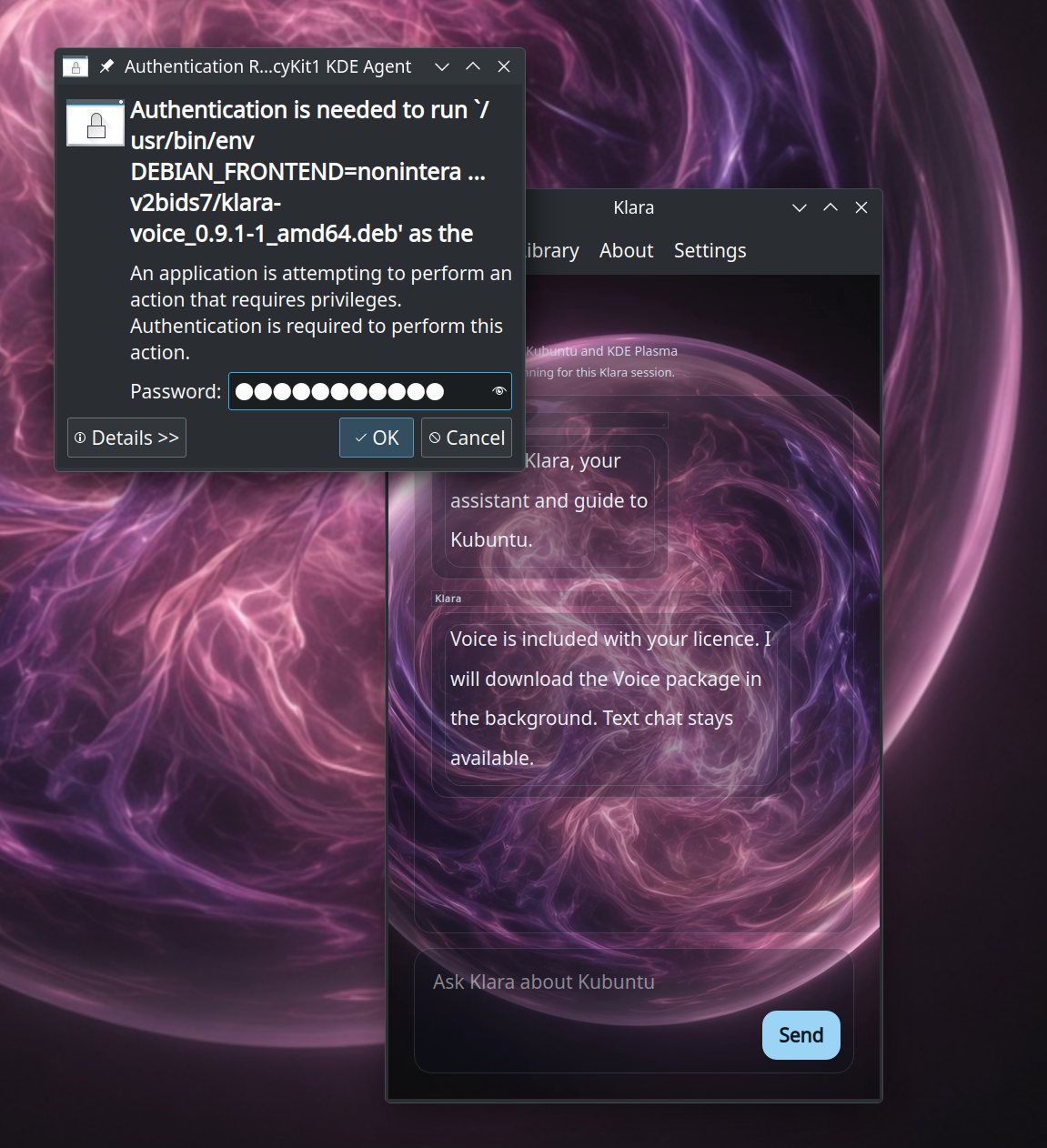
When the downloads are ready, the install asks you to authorise them. A KDE password dialog appears. Enter your user password and choose OK. She cannot skip that prompt.

KDE authentication dialog asking for a password to install the Klara-Voice package, with Klara open behind it
When the Voice download is ready, Kubuntu asks for your password. That is the authorisation step.

Kubuntu 24.04 opens QApt

Double-clicking the .deb on Kubuntu 24.04 often launches QApt Package Installer. That window cannot install what Klara needs. Close it. Right-click the package in Dolphin and choose Open With → Discover. Both screens are in the install walkthrough.

First launch is the long wait

The setup package is a few kilobytes. The first time you open her, she fetches local AI services and her language model. Leave the window up until the status line reads Local assistant is running for this Klara session. Closing her early means she starts the download again next time.

She will ask for your password

Installing software, Voice, and some system changes go through polkit. The lock dialog is your computer asking you. Klara never skips it. If you did not mean to continue, choose Cancel.

Ask Klara

Take the problem to her first

Klara is the help that already lives on the machine. Ask her about Plasma, Discover, printers, files, and the thing that just broke. She answers locally, opens her guide when she has one, and can do the work with you — after you approve the system prompt.

Ask her in the window

Type the issue the way you would tell a colleague — a missing printer, installing KeePassXC, tiling windows. She explains, then offers the next step.

Open the Klara Guide

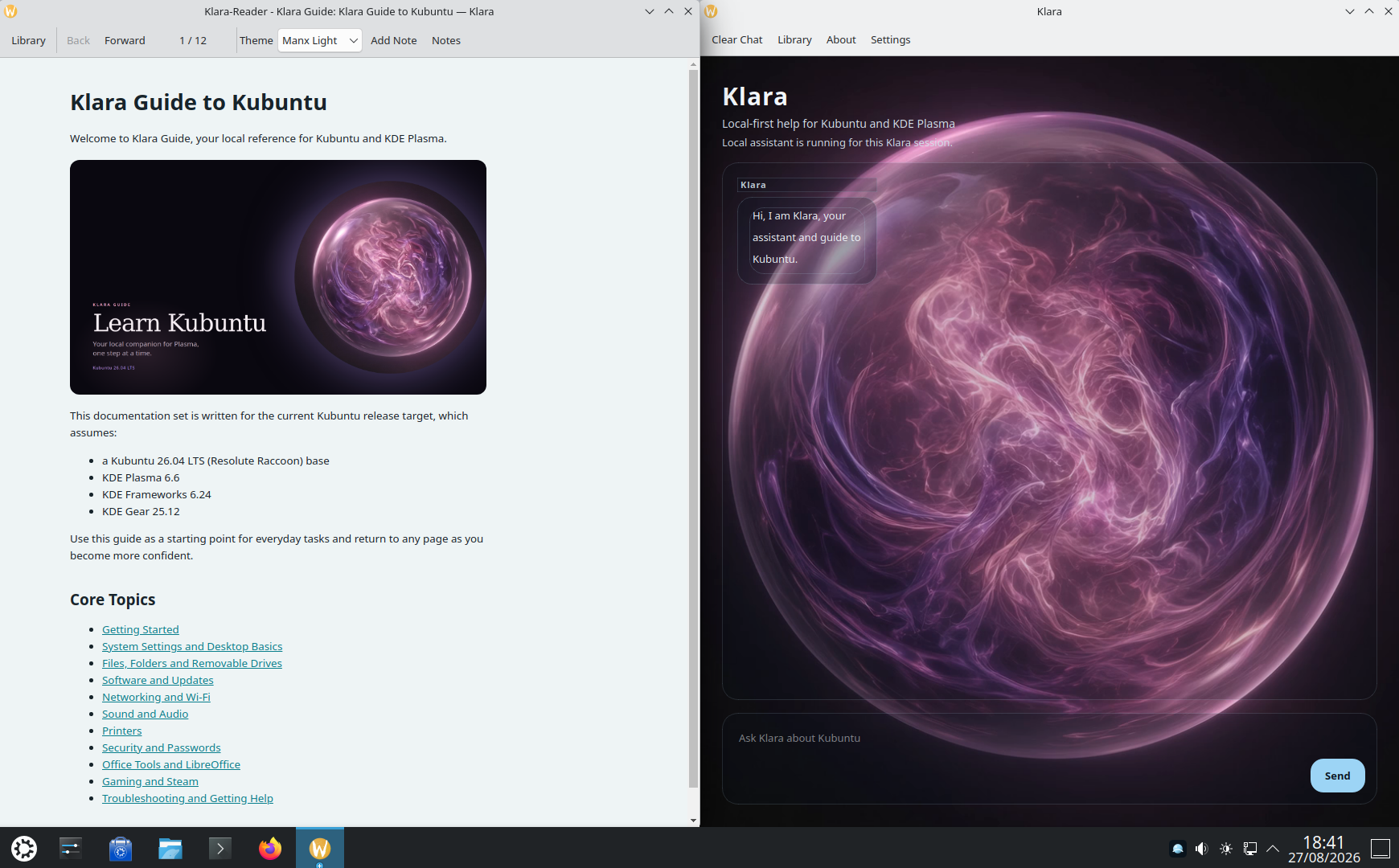
Ask her to teach the desktop and she opens Klara Guide to Kubuntu beside her own window. Getting started, System Settings, software, security, troubleshooting. Reopen it whenever you want.

Let her act

She can open Dolphin, Konsole, Discover, and System Settings. For installs she prepares the transaction and waits for polkit. You remain the administrator.

If the problem is a licence or a purchase, write to Timmisun Limited. For product notes and a wider room, join the community.

Klara Guide to Kubuntu open in Klara-Reader beside the Klara window
Ask her to teach the desktop and she opens the guide beside her. A starting point you can reopen.

FAQ

Before you write to us

Short answers. The honest ones.

How do I ask Klara for help?

Open her from the launcher and type the problem. She is local-first help for Kubuntu and KDE Plasma. Ask her to teach the desktop if you want Klara Guide to Kubuntu beside the chat. She can also open apps and walk you through an install — she will not skip the password prompt.

The Voice install has been sitting there for ages. Is it stuck?

Probably not. Klara-Voice and Voice-Upgrade still have to fetch about 11 GB of runtime, speech, and models after the small setup package. That can take several minutes. Leave her window open. When the downloads are ready she will ask you to authorise the install with your password. See Troubleshooting.

QApt opened instead of Discover. What now?

Close QApt. It cannot finish the install on Kubuntu 24.04. Right-click the .deb in Dolphin and choose Open With → Discover. The install walkthrough shows both screens.

Does Klara need the internet?

Once, to fetch her models and voice. After that she runs on your machine. She does not phone home, and she does not require an account.

Do I need an NVIDIA GPU?

No. CUDA is acceleration, not a requirement. Klara-Voice is happiest with an RTX 20-series or newer and 8 GB VRAM, but the text licence is meant to run without a discrete GPU.

Can she really install software?

Yes. She can open Discover, prepare apt or Flatpak transactions, and walk you through them. She never skips the polkit prompt. You remain the administrator.

Will she work on other Linux desktops?

She is tuned for Kubuntu and KDE Plasma 6 first. Ubuntu and other Debian-based KDE distributions are next. GNOME, Cosmic, and Windows are out of scope.

Is there a subscription?

No. A licence is a one-time purchase through Timmisun Limited’s Tide Business account. Model updates for your major version are included. There is no seat in the cloud to renew.

How do I install her?

Pay on Tide, save the small klara-setup package from the email, open it with Discover, and type your password once. Open Klara and leave her running while she fetches local models. The installation walkthrough shows every screen.

What if she does not fit?

Fourteen days. If Klara is not at home on your desktop, write to us with the licence key and we will refund the purchase.

Klara as a plasma orb, ready to join a Kubuntu desktop

Still stuck

Walk the install again, or sit with her.

The walkthrough is every screen from Tide to the panel. Once she is open, she is the first place to take a problem.