No terminal
You never type apt, sudo, or a curl. Open the package in Discover. It does the rest.
Walkthrough
From Tide to the panel. One package, your password once, then Klara lives on the machine.
You never type apt, sudo, or a curl. Open the package in Discover. It does the rest.
Kubuntu will ask for your password. That is polkit. You approve the install. Klara never skips it.
Leave the Klara window open. It downloads Ollama and its model once. After that Klara works offline.
Buy
This walkthrough uses the Klara text licence (£24). Klara-Voice and Voice-Upgrade follow the same path with a different package in the email.
01
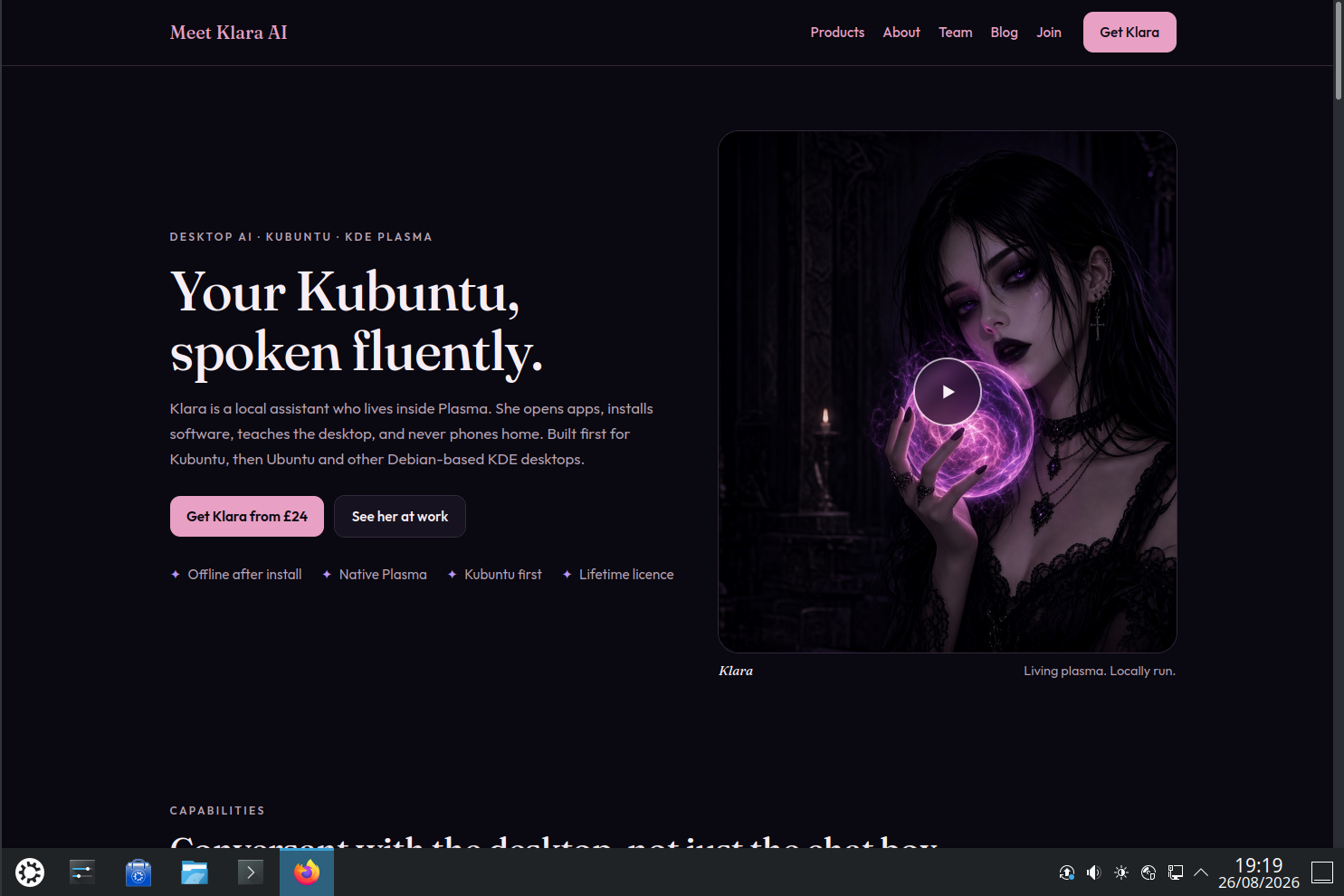
Start at the home page in Firefox on your Kubuntu desktop. This is the official site, sold by Timmisun Limited.
Bookmark it. You will come back here for licences and this walkthrough.
02
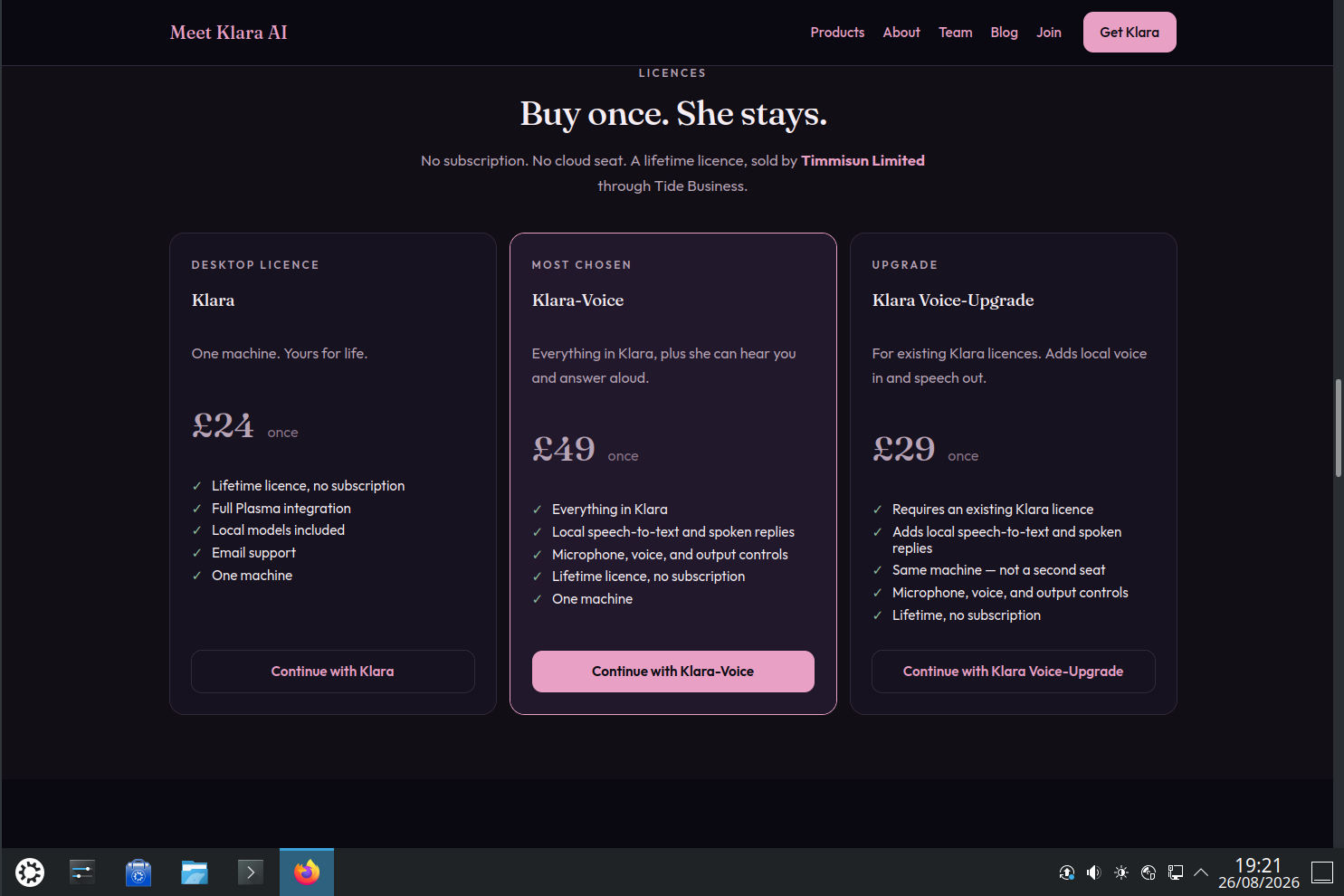
Scroll to Buy once. Keep it. Three cards. Klara is text. Klara-Voice includes voice. Voice-Upgrade is only if you already own Klara.
New to Klara? Klara-Voice at £49 is cheaper than Klara plus the upgrade later.
03
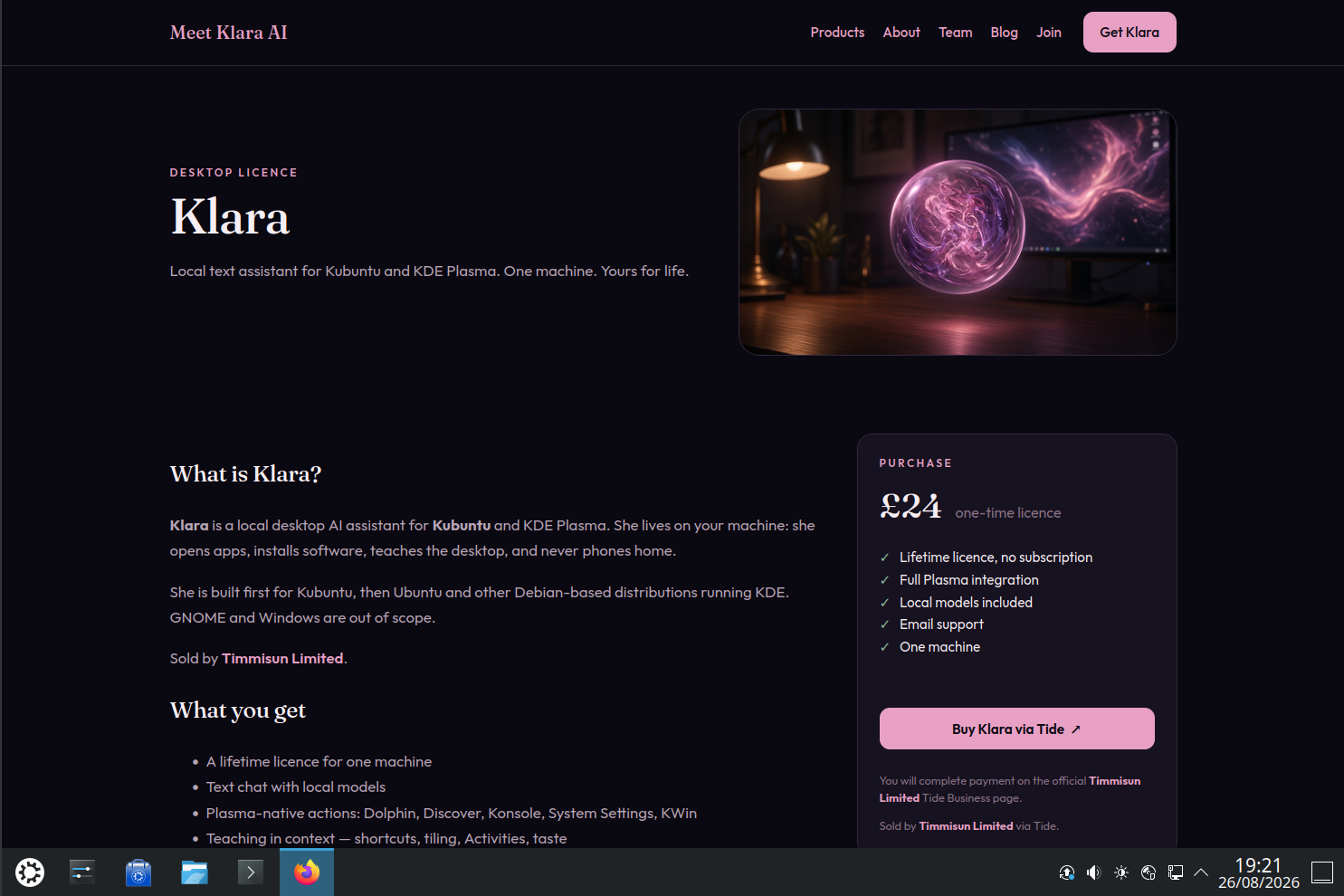
On the Klara card, click Buy · £24 to go straight to Tide, or Details to read what you get first and then use Buy Klara via Tide. Payment is not on this site.
04
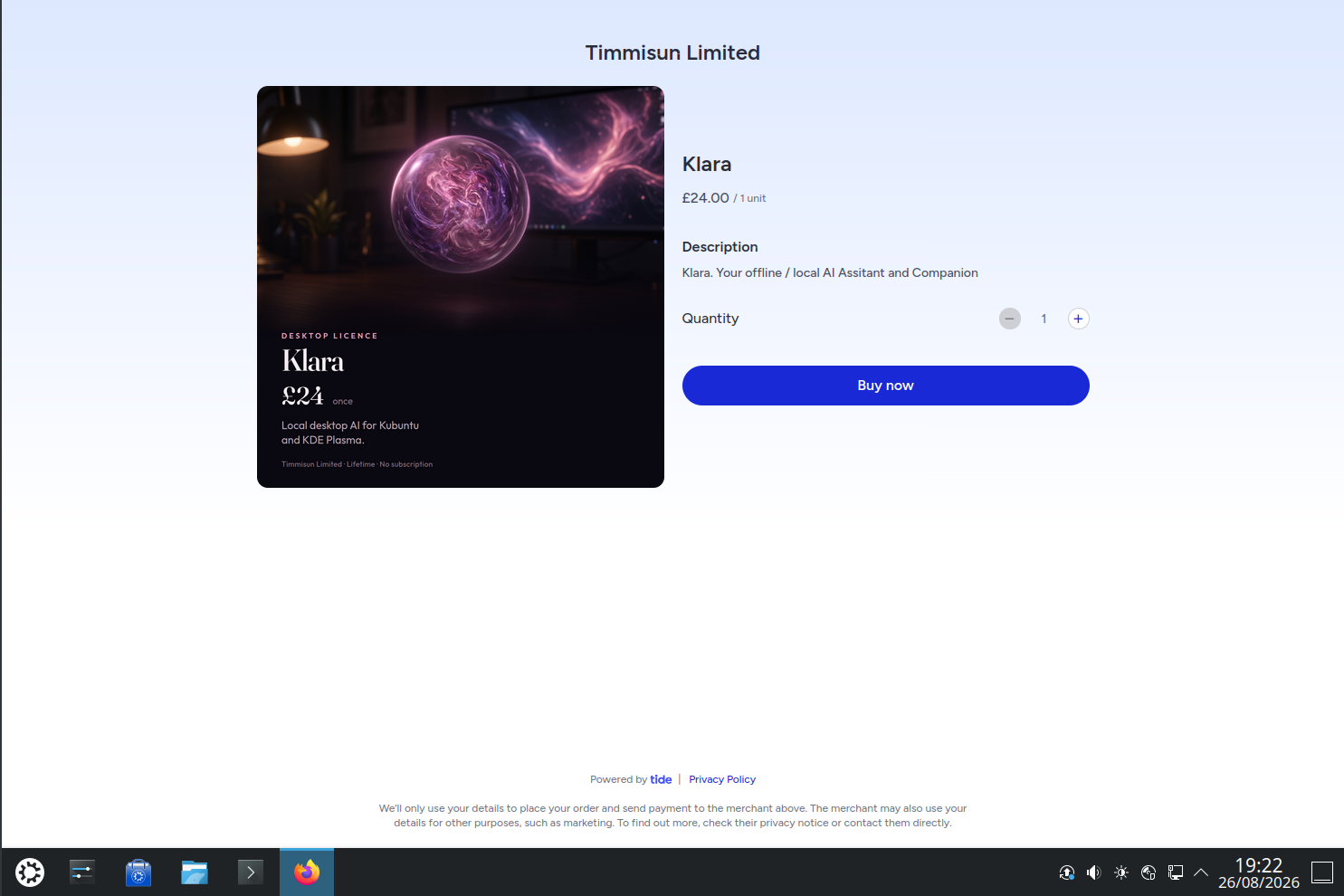
Tide shows Timmisun Limited and Klara at £24.00. Quantity 1. Click Buy now and finish checkout as Tide asks.
You are paying Timmisun Limited, not a personal account. Keep the confirmation email.
Download
After payment, a confirmation email arrives with klara-setup. It is a few kilobytes. The heavy models come later, on first launch, not in this file.
05
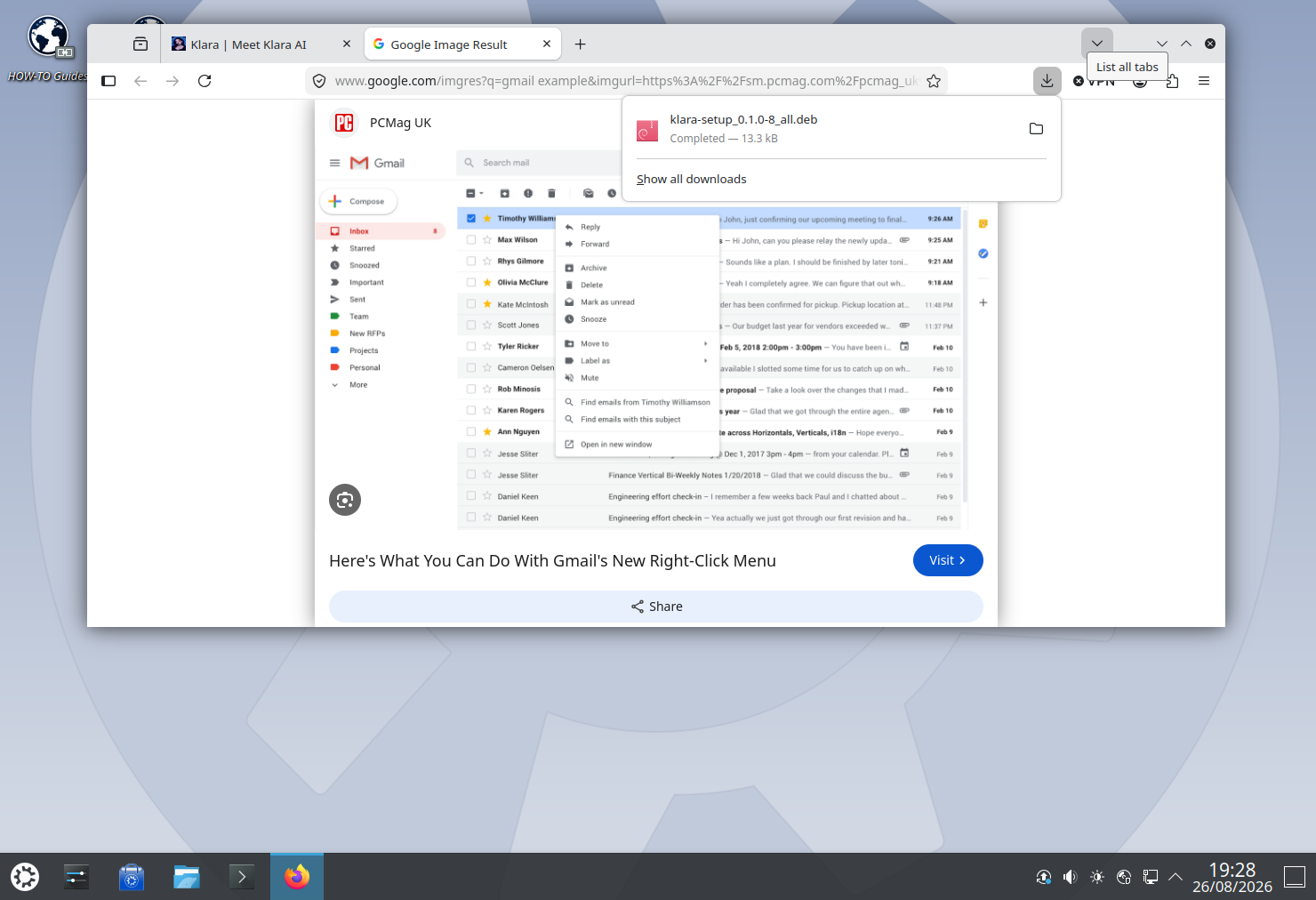
Open the email and download klara-setup_…_all.deb. Firefox will show a completed download. The file lands in Downloads.
The name looks like klara-setup_0.1.0-8_all.deb. The numbers will change as we ship updates. Same idea.
06
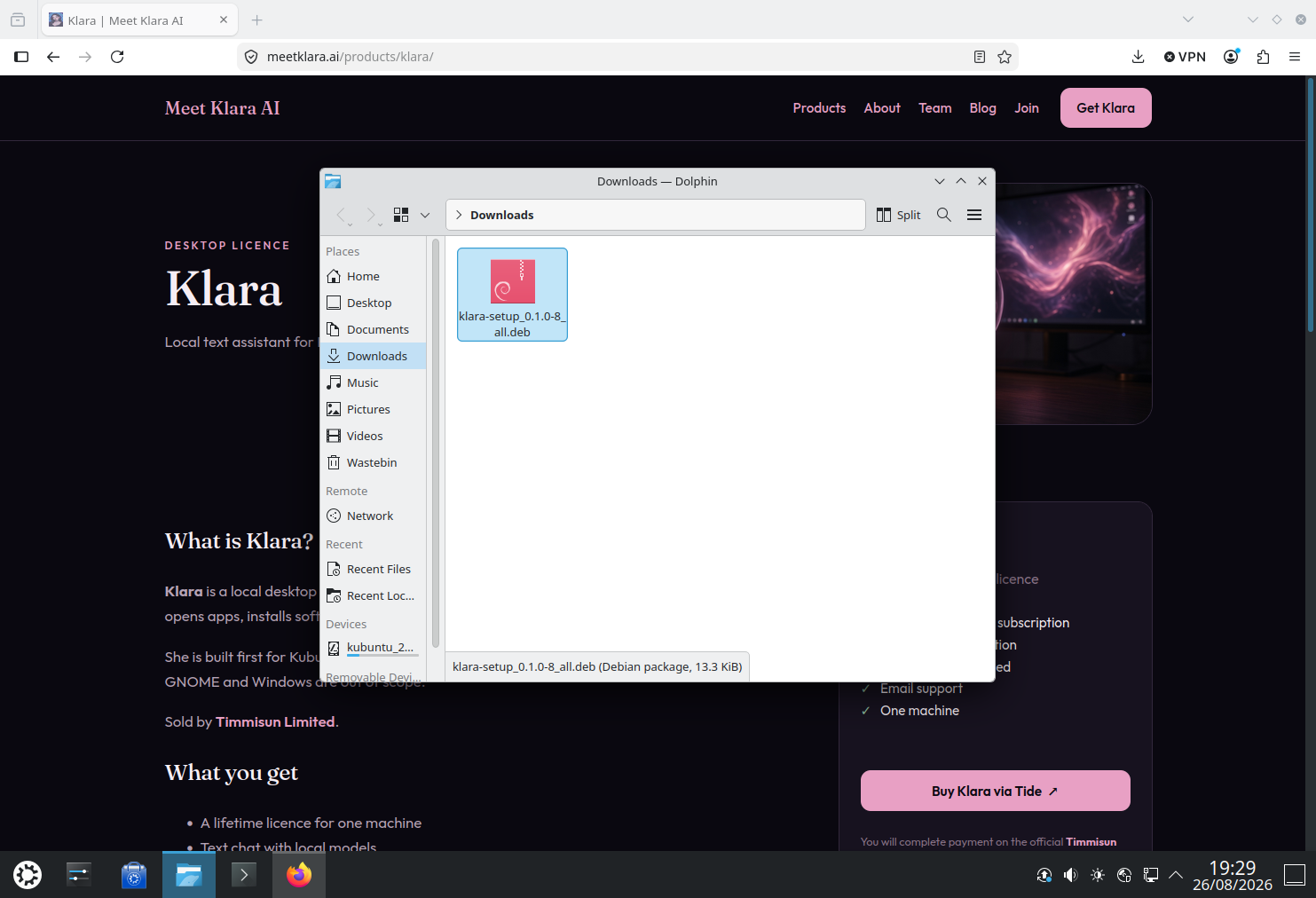
Open Downloads in Dolphin. You should see the pink Klara package. That is the whole installer.
You do not unpack it. You do not open a terminal.
Install
Open the .deb with Discover, the software centre you already use. On Kubuntu 24.04 a double-click often launches QApt instead. That installer cannot finish the job.
07
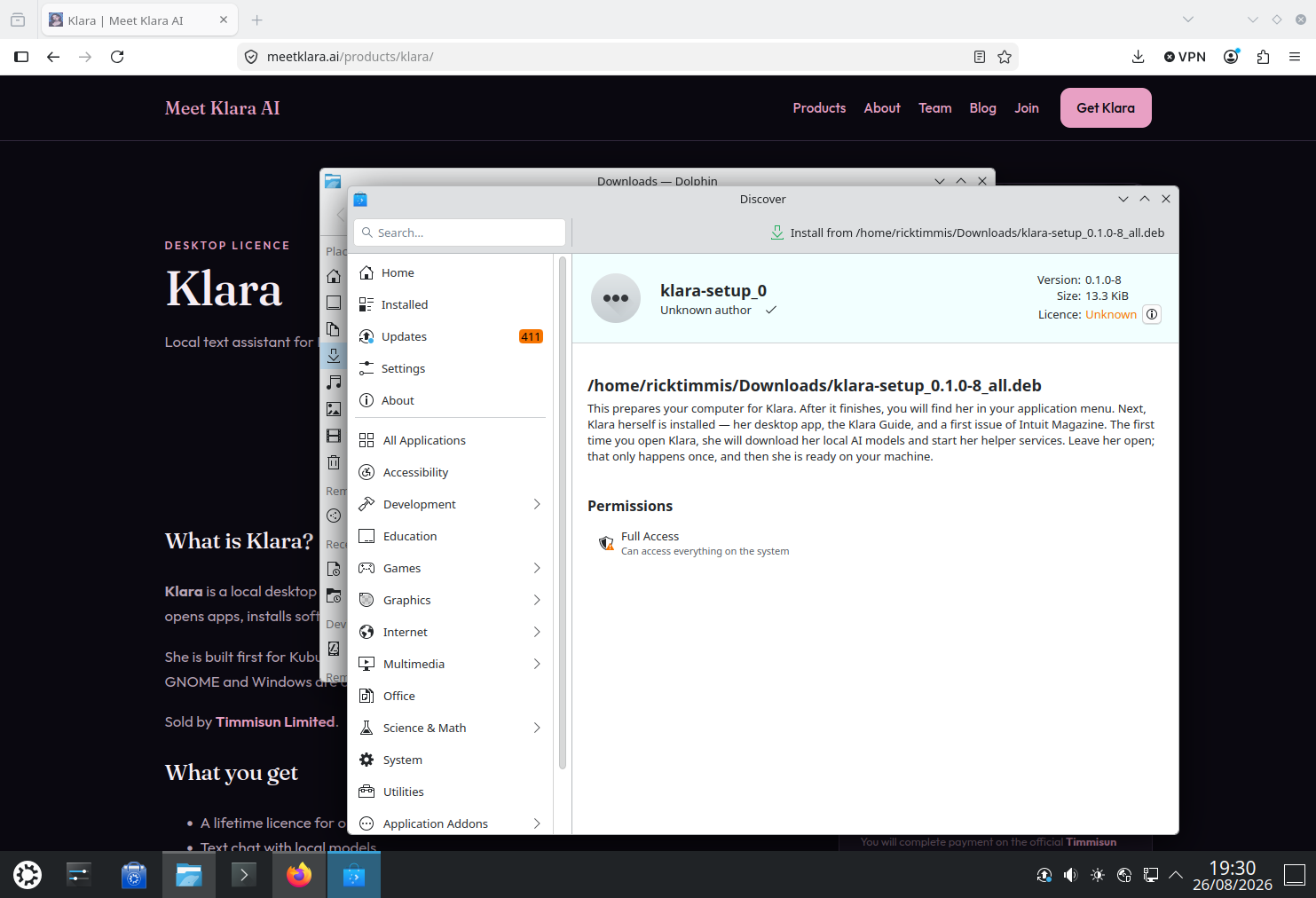
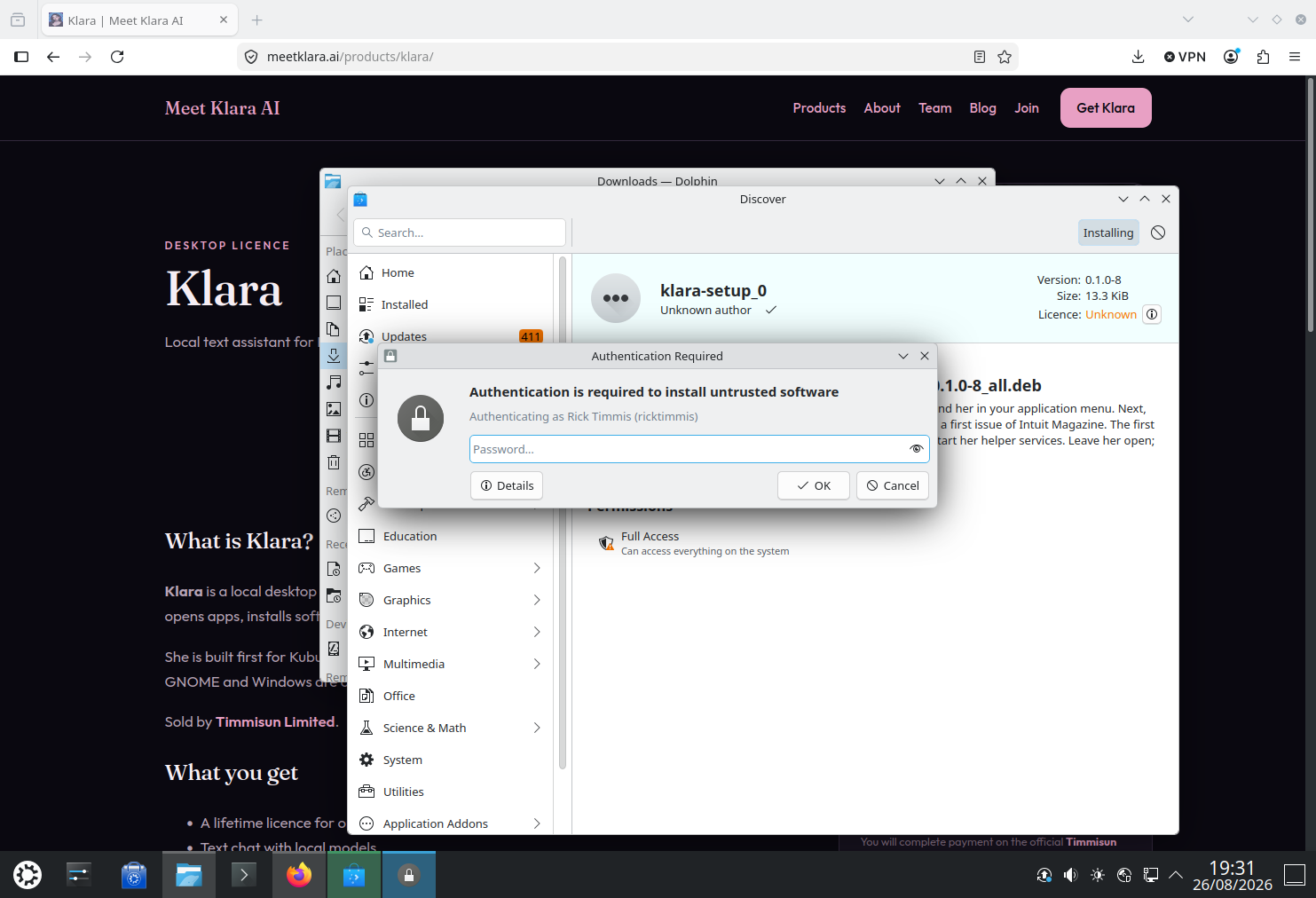
Discover opens on klara-setup. Read the description if you like. Click the install control at the top of that window.
“Unknown author” is Discover being cautious about a file you downloaded. You bought this from Timmisun Limited. If QApt opened instead, close it and open the file with Discover — see the note above.
08
A lock dialog appears — Authentication is required to install untrusted software. That is your computer asking you. Enter your user password and choose OK.
This is polkit. Klara cannot skip it. If you did not mean to install, choose Cancel.
First run
When Discover finishes, Klara is in the application launcher. The first time you open Klara, leave the window up. It fetches local AI services and its language model. That is the only long wait.
09
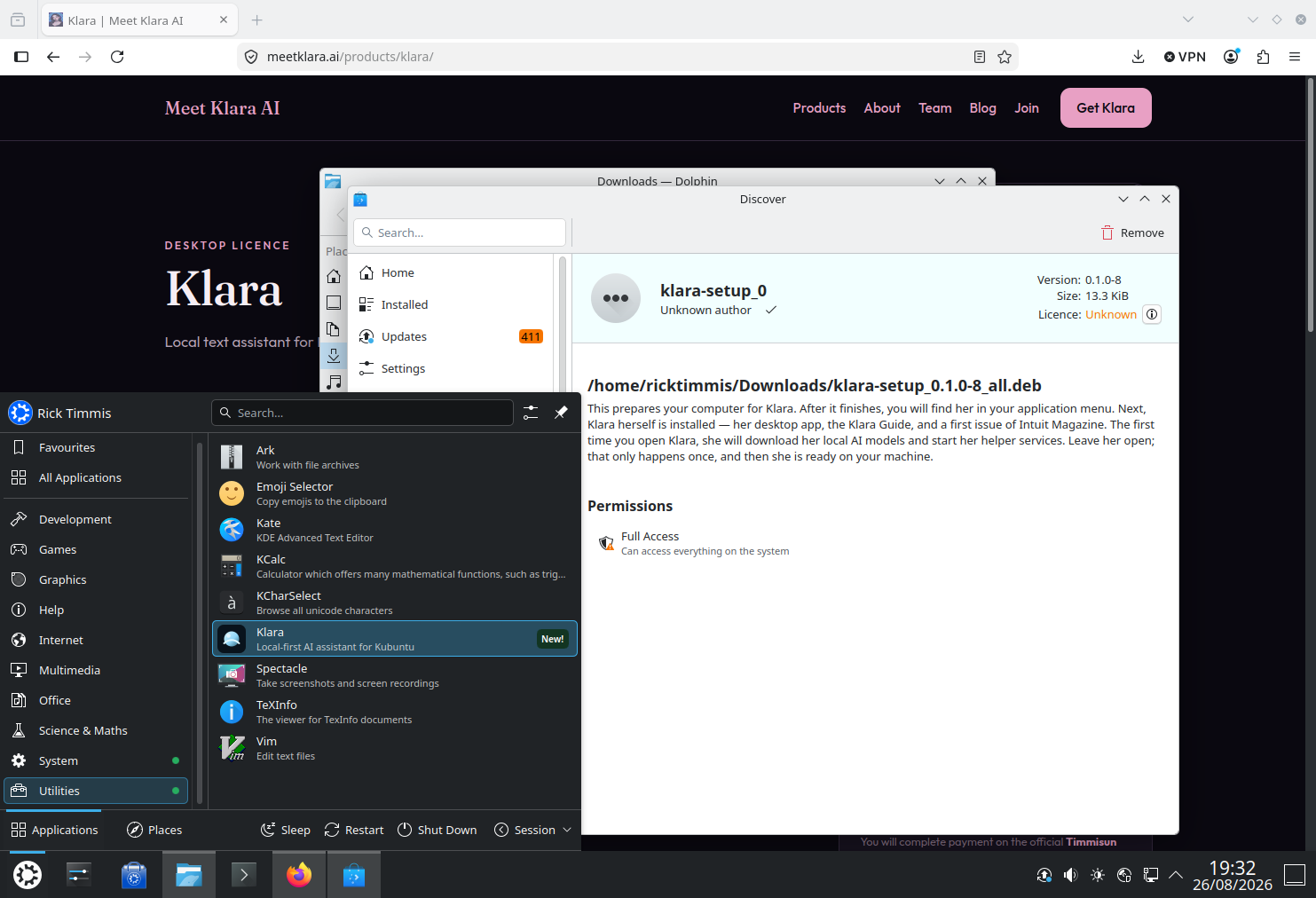
Open the application launcher. Under Utilities you will see Klara, Local-first AI assistant for Kubuntu, with a New! badge. Click Klara.
10
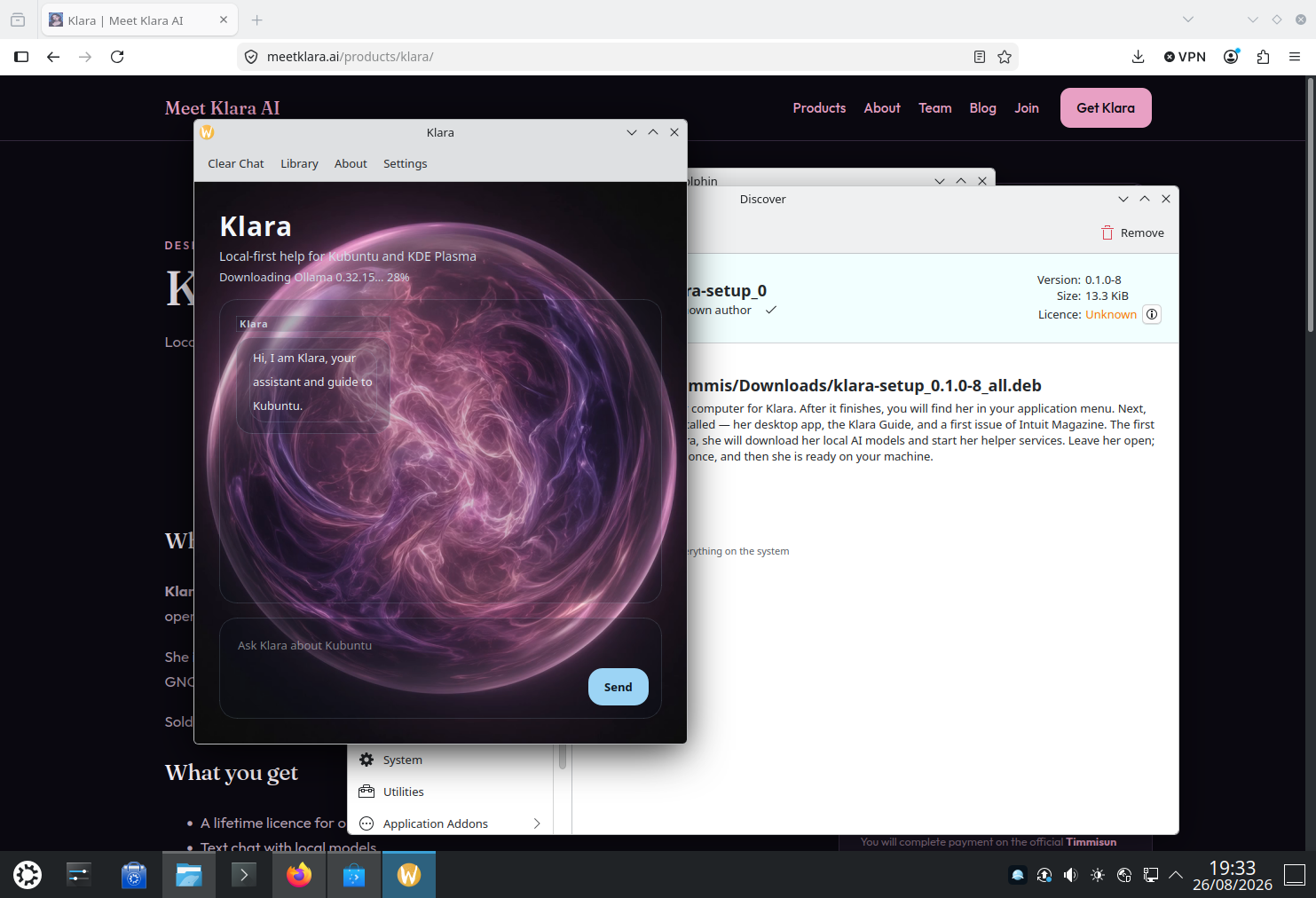
The Klara window opens on the plasma orb. A status line appears under the name, for example Downloading Ollama. Klara is installing the local engine. Do not close the window.
First conversation can wait. The greeting is already there. Let the download finish.
11
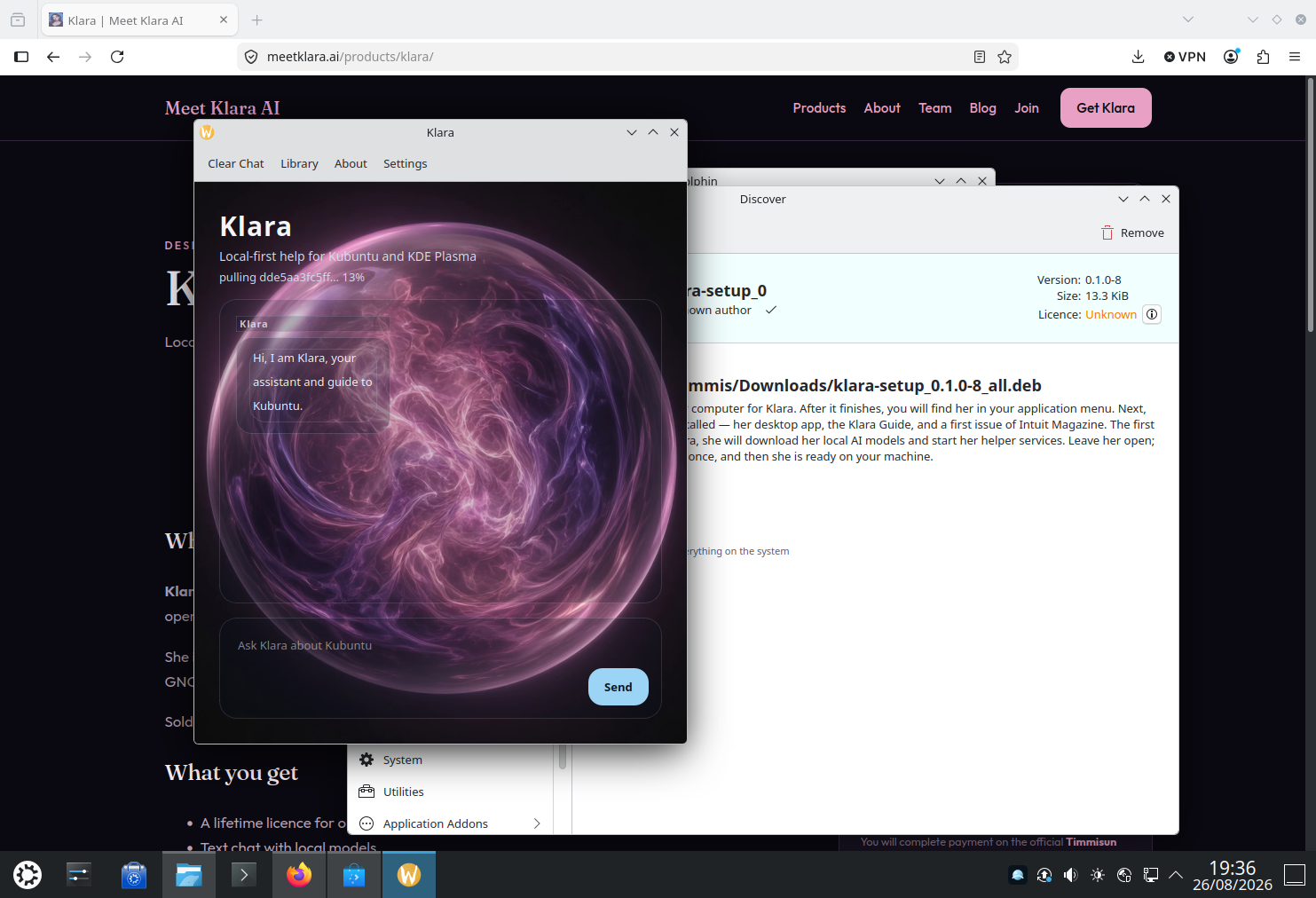
Next Klara downloads its language model. The status line will mention a model id and a percent. This is larger than the setup package. Stay online until it completes.
12
When the line reads Local assistant is running for this Klara session, Klara is ready on this machine. After this it does not need the network for ordinary chat.
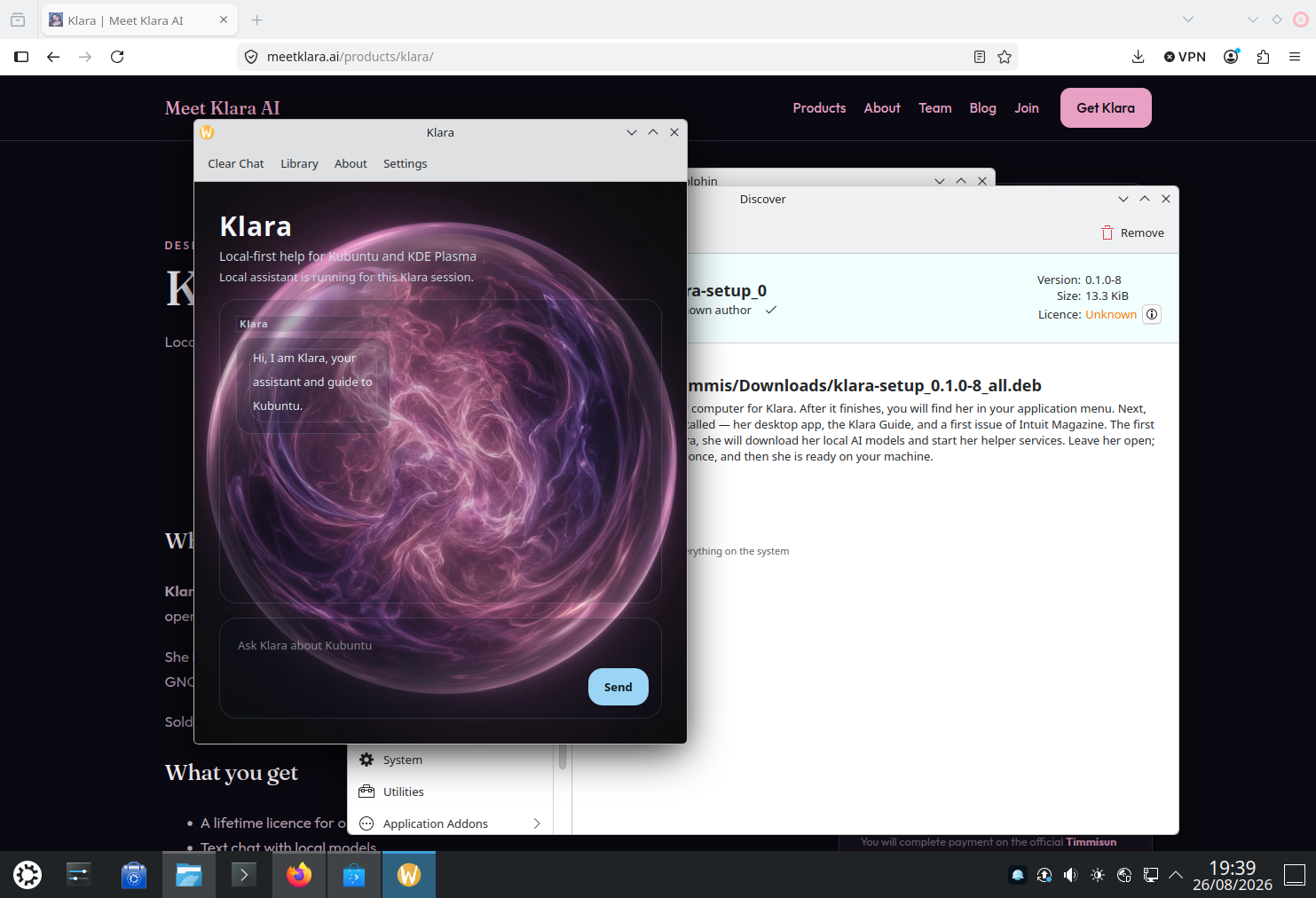
13
Type in the box and send. Klara answers on the machine, with sources from its local guide when it has them. That is the whole install.
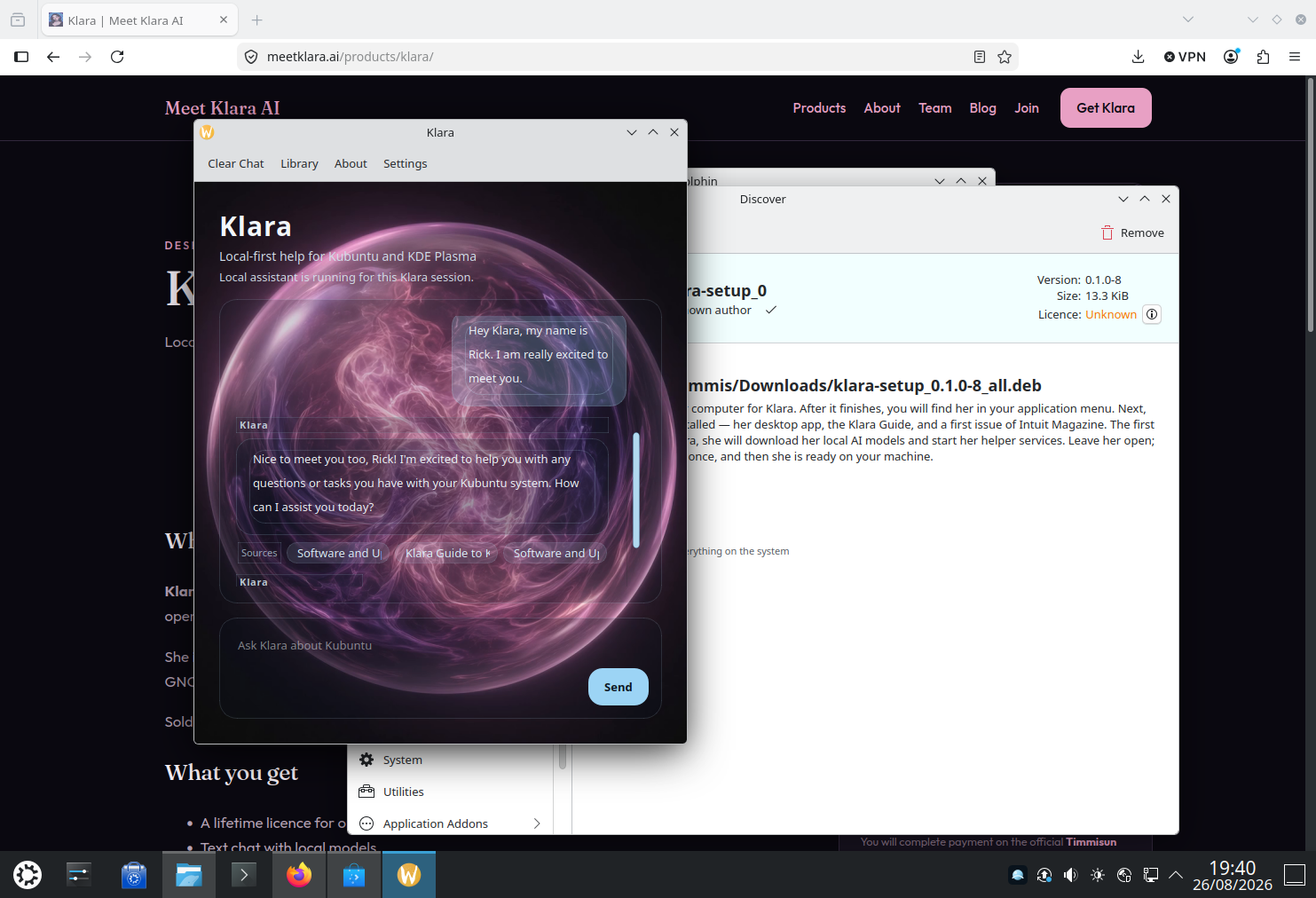

Ready
One purchase, one package, your password once. After that Klara lives on the machine.